Avaya VoIP phones and call forwarding

I am a VoIP newbie. So everyday I learn something new. Recently, a few or our employees asked how to increase the number of rings when forwarding their calls to cell phones. As it was setup originally, the call rings once at the desk phone, then forward to the cell phone where it rings twice, and if not answered goes directly to voice mail. I thought this might be a settings that could be changed at the phone phone level. However, this is not the case. You have to make the change in the Avaya Site Administration console.

Log in to your Avaya Site Administration console

Under the Advanced options, select Start Emulation

At the Command prompt, enter – change system coverage

The second line labeled ‘Off-Net Cvg Subsequent Redirection…’ is where you make the change 

Increase the number of rings 

Click Enter at the top to save your changes

You’re ready to test call forwarding and verify that the number of rings has increased.

Remote Desktop Connection Manager

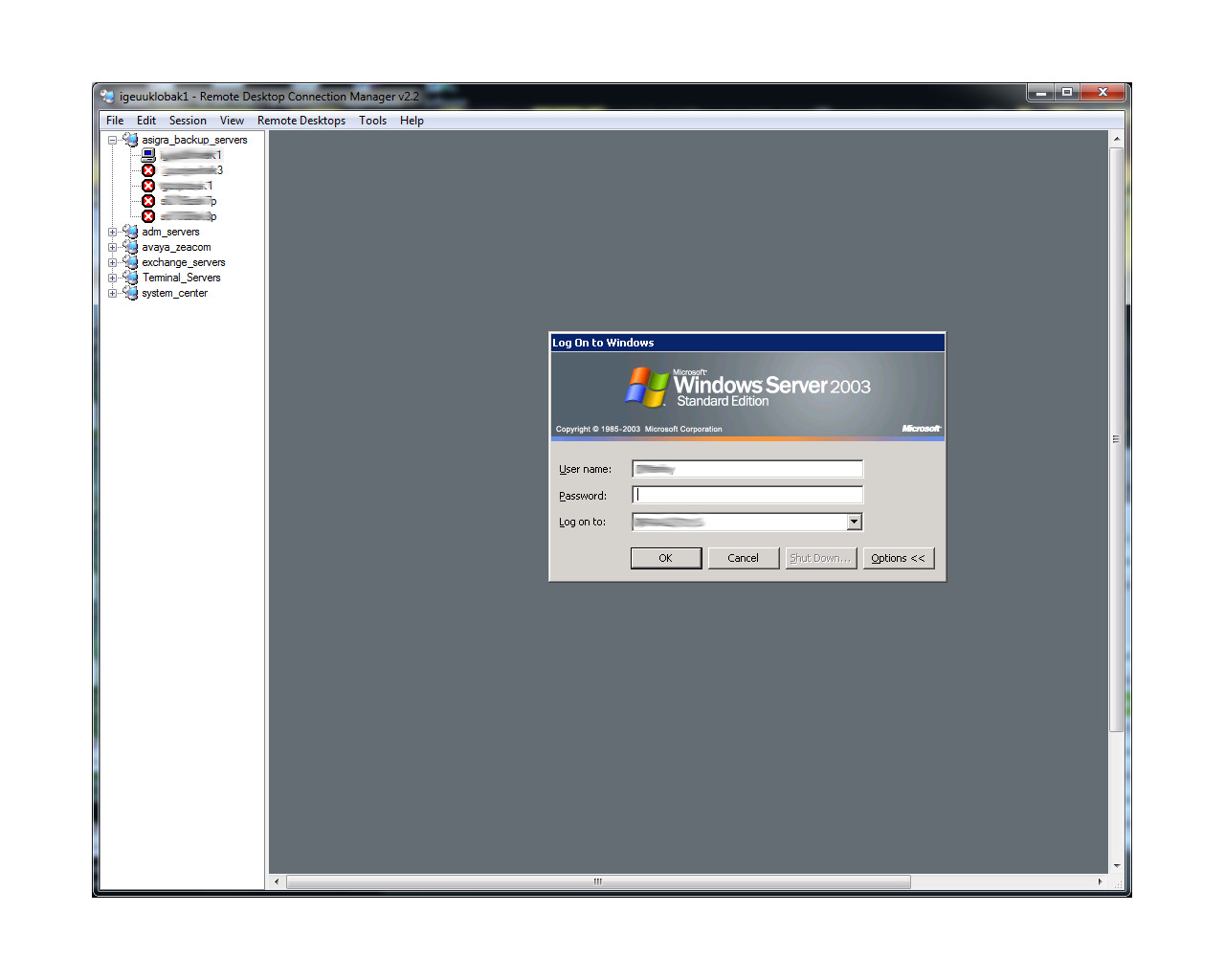
I love tools and utilities that make my daily activities more efficient. As a sys admin, I use an MMC console which contain the Remote Desktop snap-in but recently I installed Remote Desktop Connection Manager. It’s very similar to what you get with the MMC snap-in but I like the ability with this tool of creating groups. As you can see from the pic below, my first group contains my backup server group. I can either remote into each server individually or…

Image

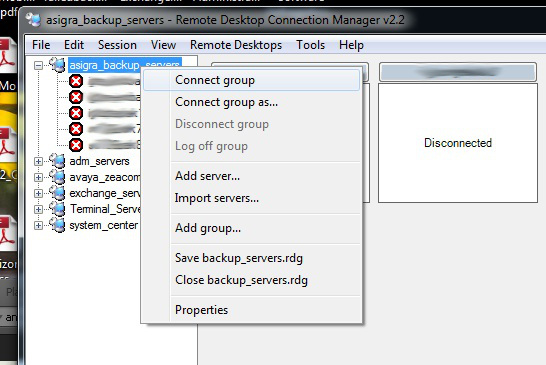
 log in to all of them at once by right clicking the group name and selecting “Connect Group” or “Connect Group As” — 


Image

 You can also, of course, disconnect from the entire group at once. Sometimes, the simplest tools are the best. This one certainly makes my daily tasks a little more efficient. If you want to download this app, it’s available on the Microsoft website: http://www.microsoft.com/en-us/download/details.aspx?id=21101.


Unable to RDP to a Windows Server 2003 R2 virtual server after reboot

This really isn’t a new issue but one that I encountered again recently. I was performing some maintenance on a Windows 2003 server that required a reboot. In my haste, I selected restart. Hindsight is always 20/20 as I soon realized this was not the correct option. After the server came back up, I was unable to use RDP to reconnect. I could ping ig it and I could also browse the network to shared folders on the machine. I tried several steps including remotely connecting to Services.msc on the server and restarting a few processes including the Terminal Services service. Ultimately, it was a power cycle that resolved the issue. I fully shut down the vm and restarted it. I tested RDP  and it worked. This solution is not always ideal especially if this is a production machine. If anyone has a solution that worked for them, please comment.

Upgrading Windows 8 to Windows 8.1 Preview

Thus far, I have not been a huge fan of Windows 8, so to troubleshoot or do testing, I keep a Windows 8 virtual machine handy. When the Windows 8.1 preview was released last week, I decided to upgrade my virtual machine. It was a very straight forward upgrade. No real glitches involved. Here are the steps: 

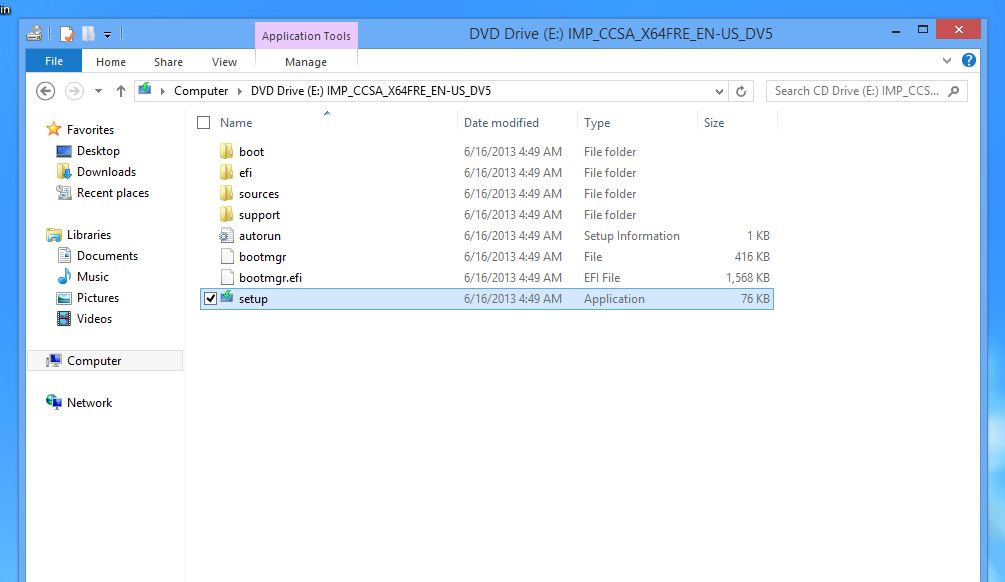
1. Mount the Windows 8 Preview ISO file.

Image


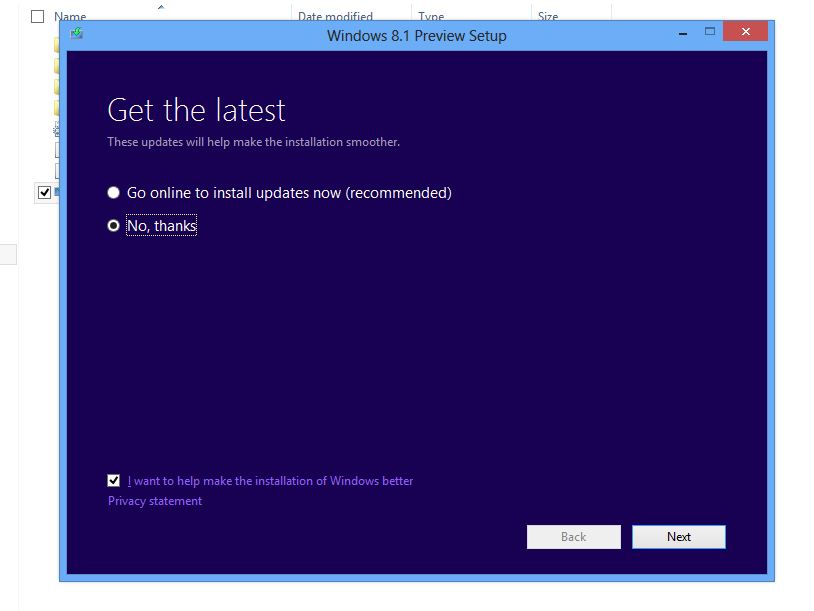
2. Launch setup.exe and choose whether or not to install updates.


Image

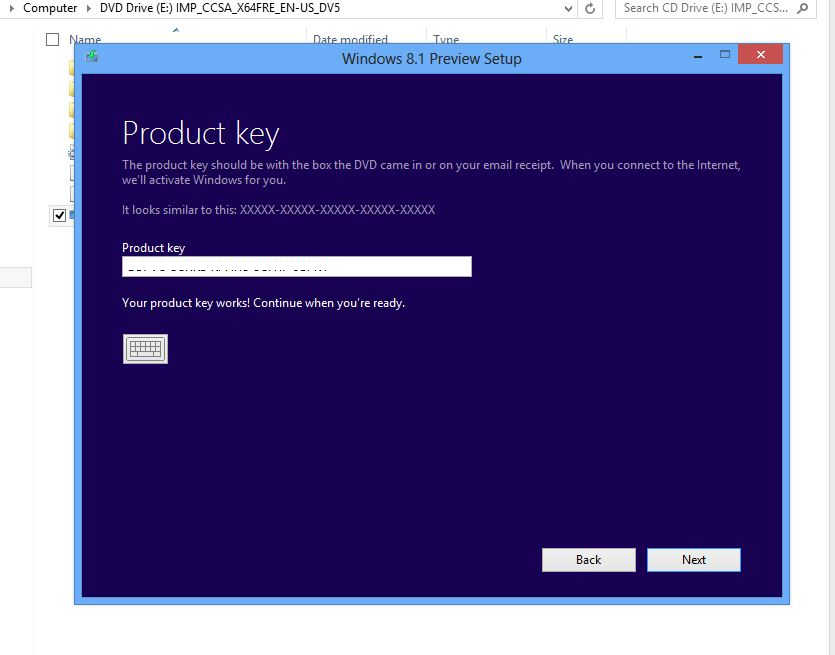
3. Enter the license key. This can be obtained from the Microsoft site. 

Image


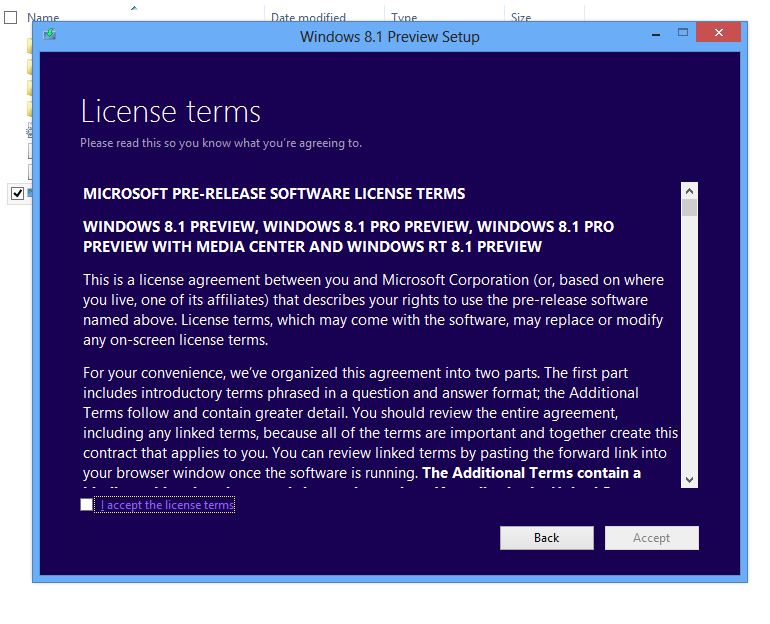
4.  Accept the license terms.


Image

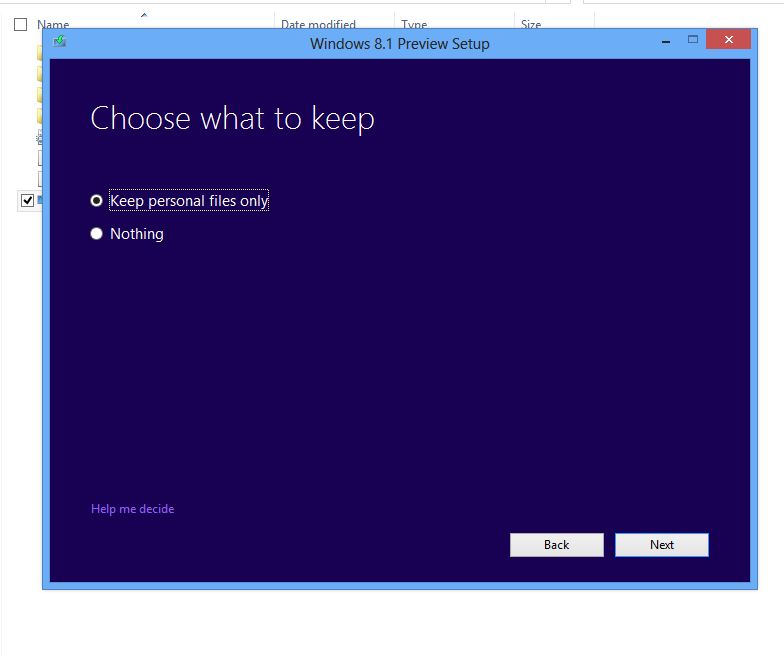
5. Choose what to keep during the upgrade.

Image

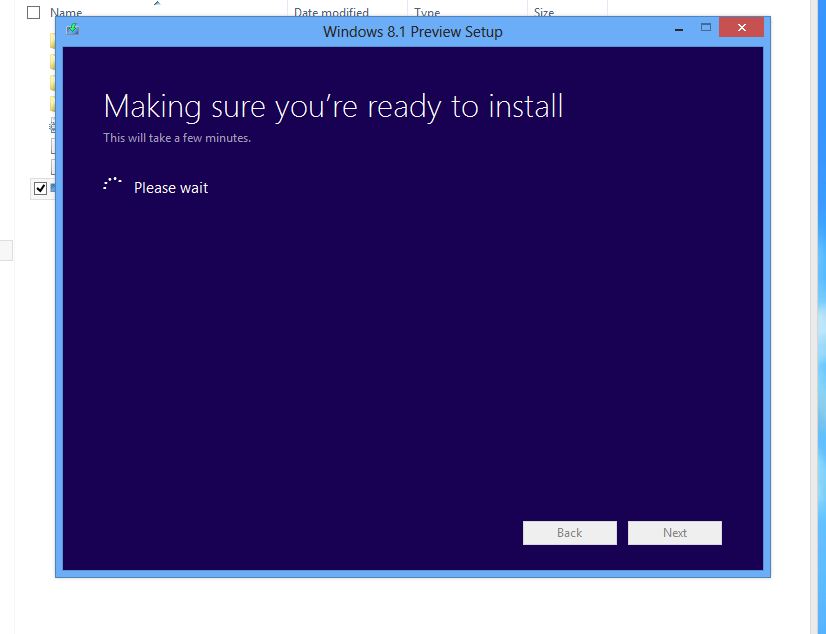
6. Performing some checks.

Image

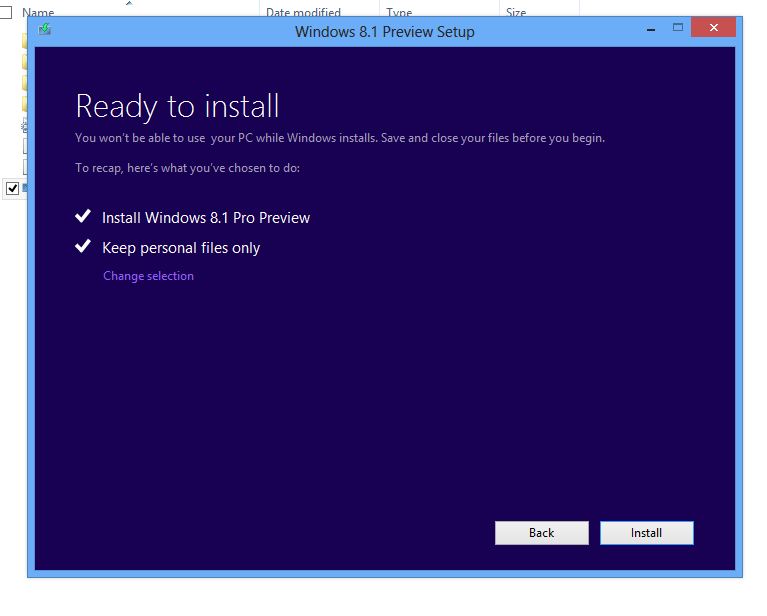
7. We’re ready to roll.

Image


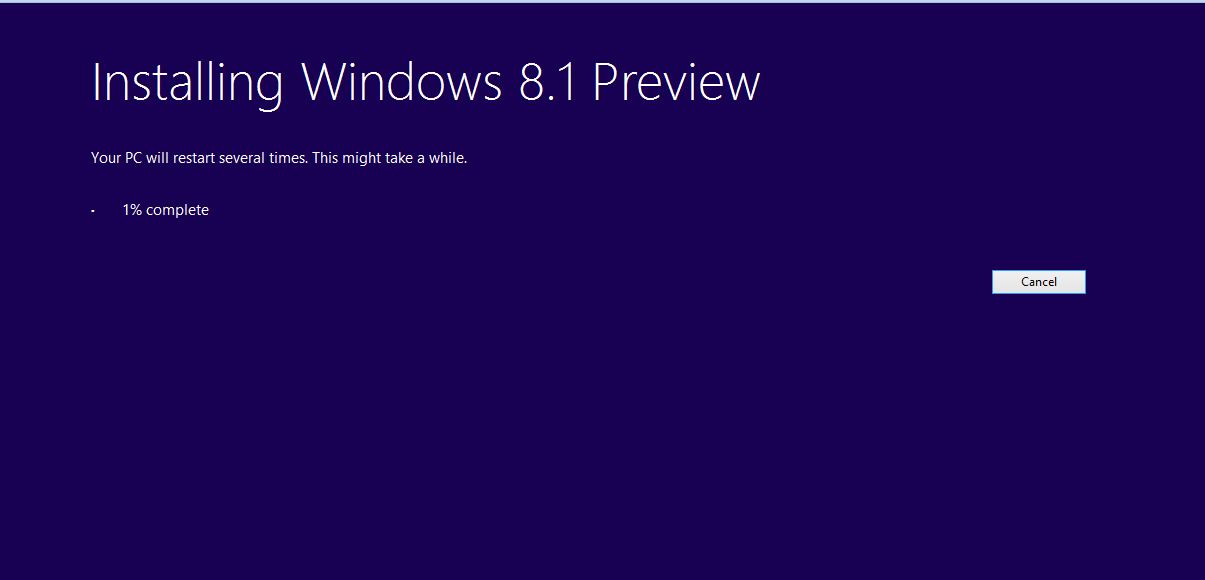
8. The installation begins.

Image


9. The machine reboots.

Image


10.  Sticking with the fish theme I see. 

Image


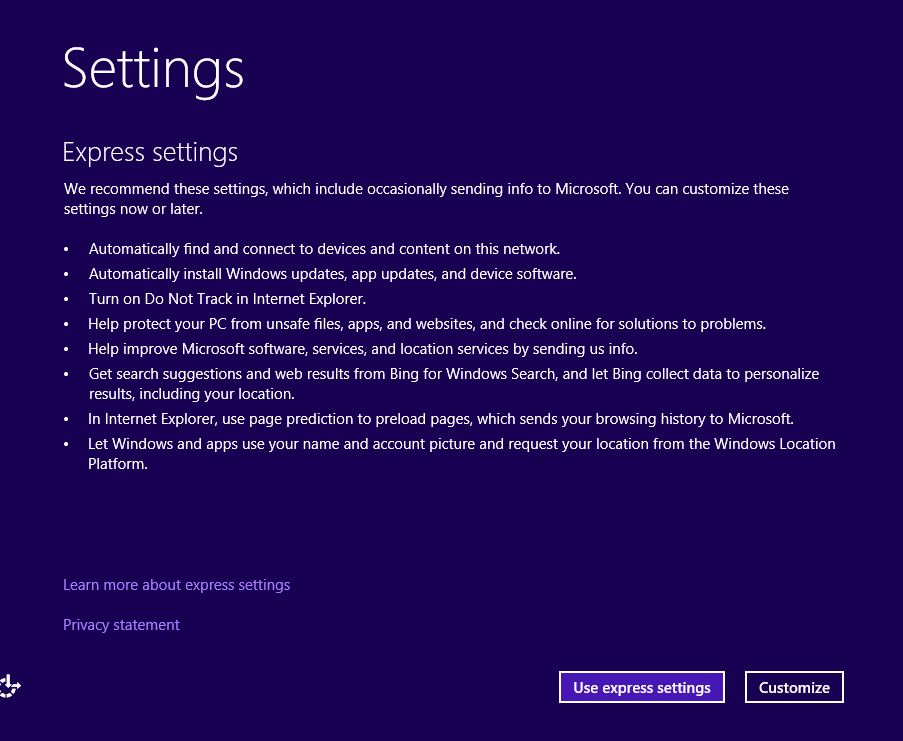
11. Choose your Settings: Express or Custom. 

Image


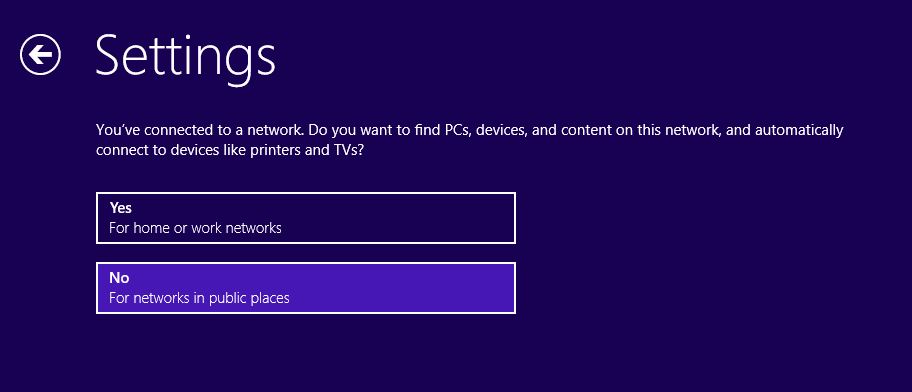
12. Network discovery choices.


Image


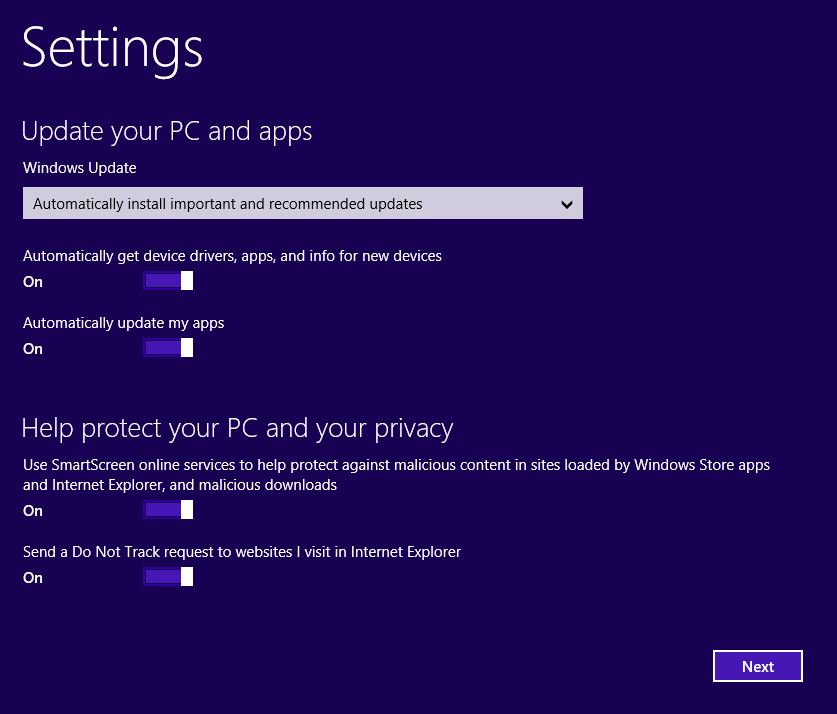
13. Choose your Windows update and Privacy settings.

Image


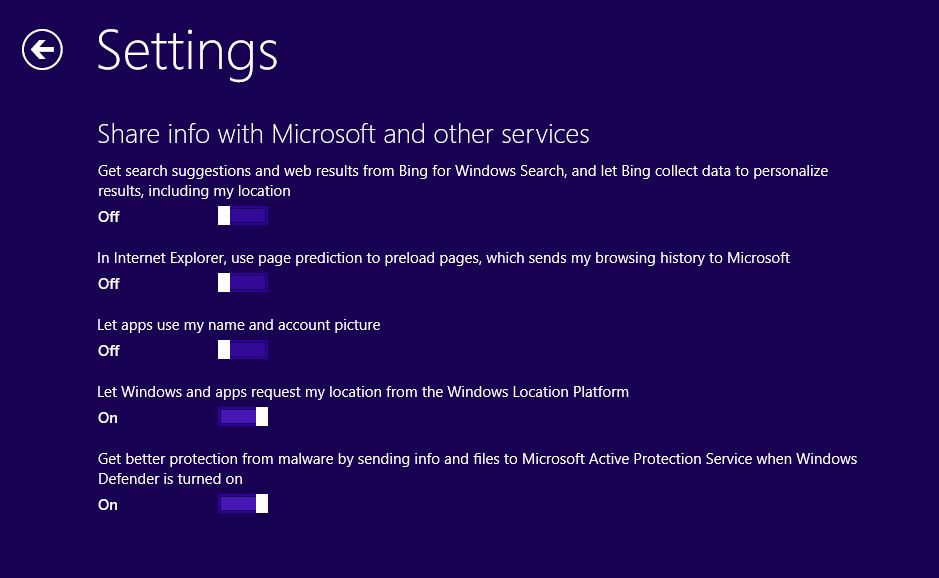
14. Choose whether to share or not share info with Microsoft.

Image


15.  Setup continues.

Image


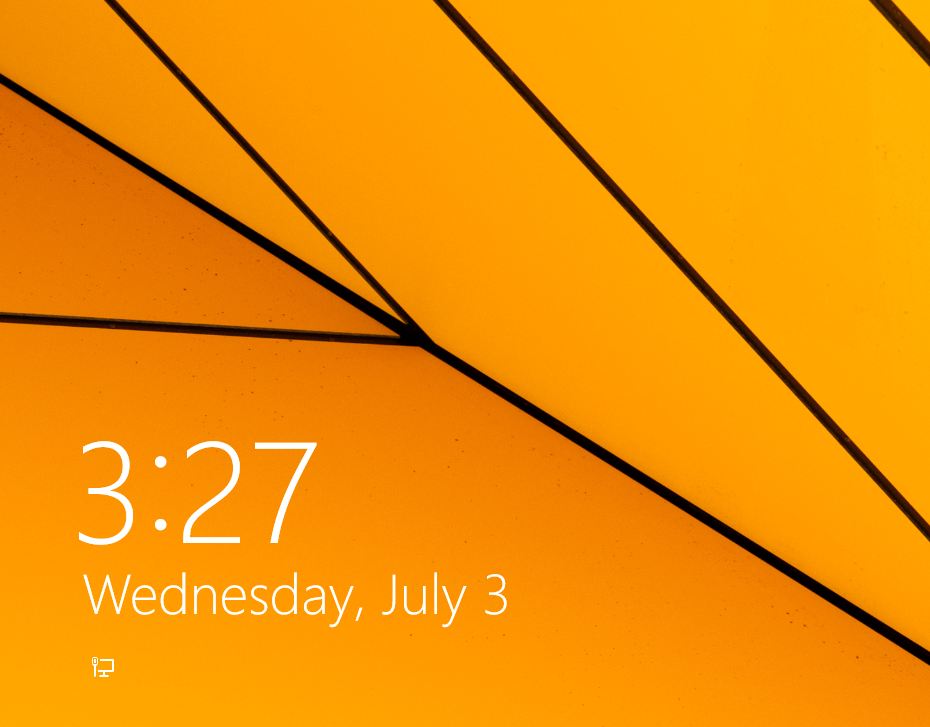
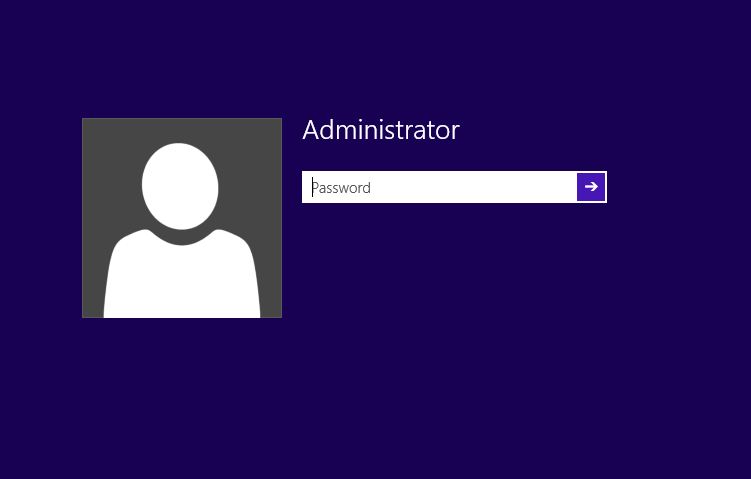
16. And here we are at the login screen.

Image


17. Enter your password. 

Image


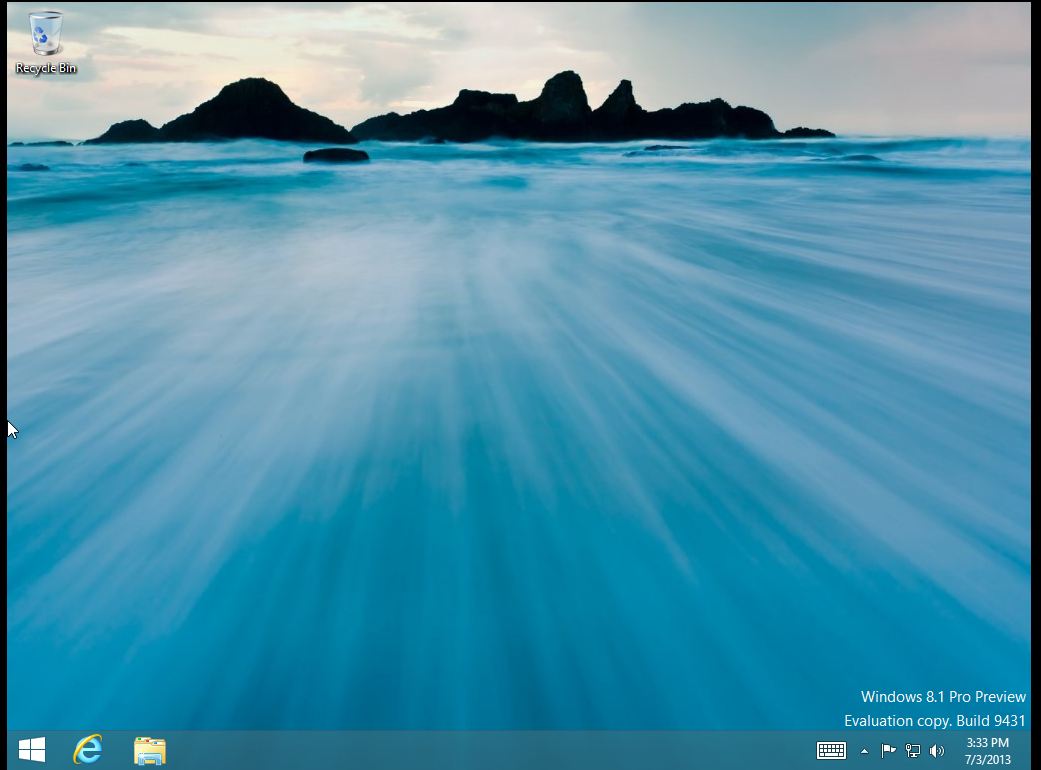
18. And we’re at the desktop. 

Image


A very simple upgrade indeed. The only thing I did not see during setup was the choice to user either a Microsoft account or a Local account. Since this is a preview, I am guessing that this option will be included in the RTM release of the Enterprise version. But that’s it. Go to http://technet.microsoft.com to get your copy of the Windows 8.1 preview and see what you think.