
Thus far, I have not been a huge fan of Windows 8, so to troubleshoot or do testing, I keep a Windows 8 virtual machine handy. When the Windows 8.1 preview was released last week, I decided to upgrade my virtual machine. It was a very straight forward upgrade. No real glitches involved. Here are the steps:
1. Mount the Windows 8 Preview ISO file.
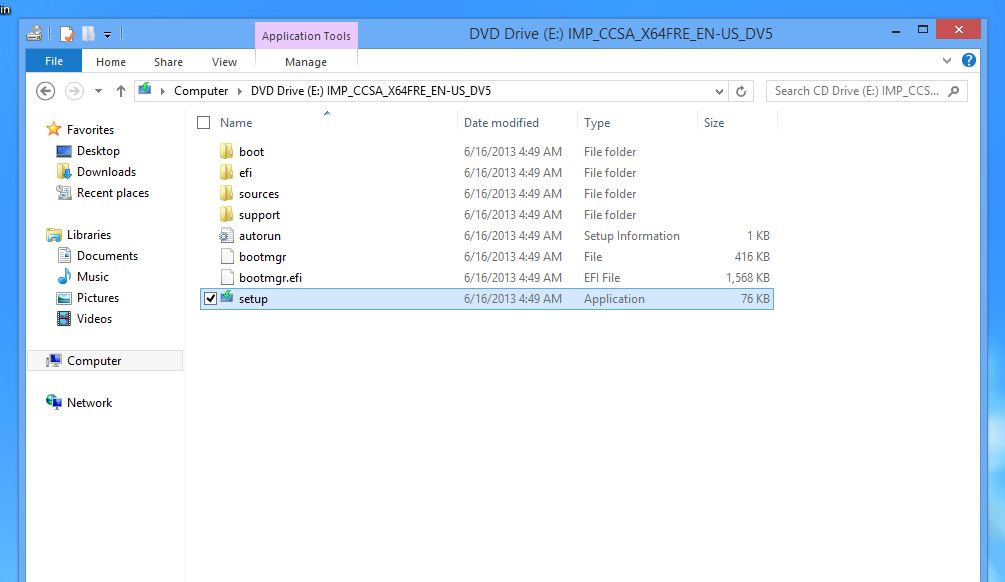
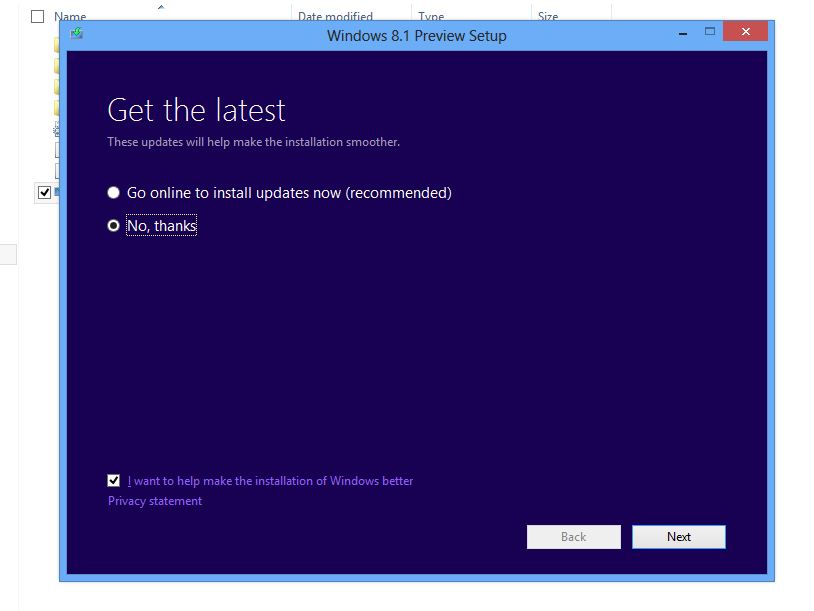
2. Launch setup.exe and choose whether or not to install updates.
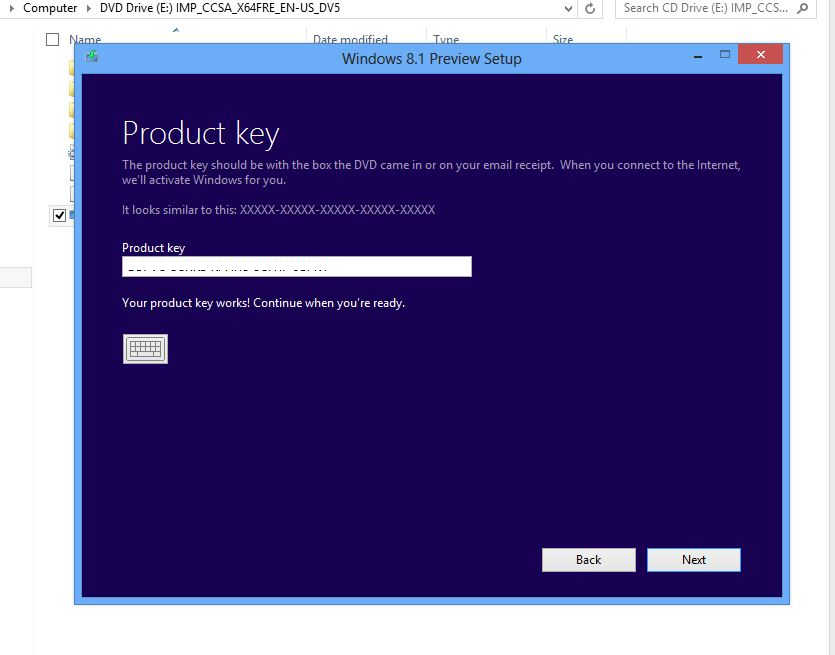
3. Enter the license key. This can be obtained from the Microsoft site.
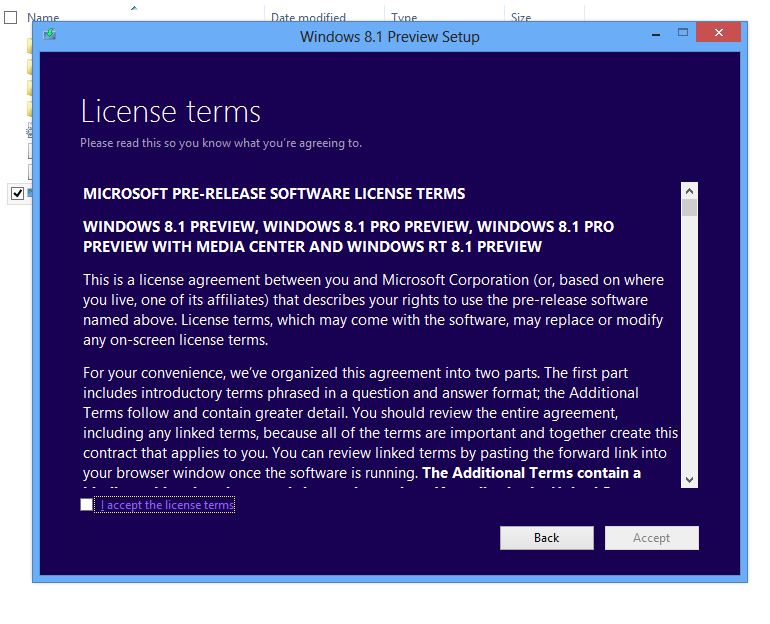
4. Accept the license terms.
5. Choose what to keep during the upgrade.
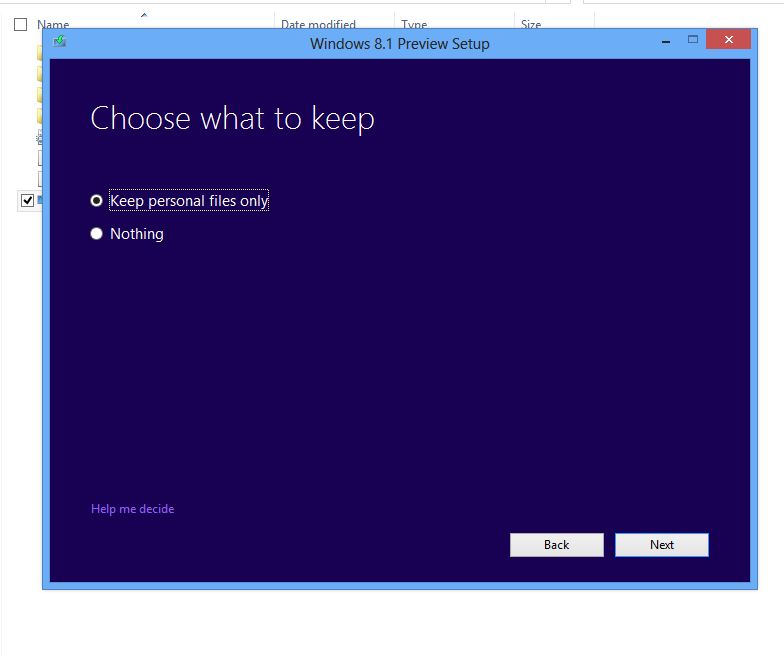
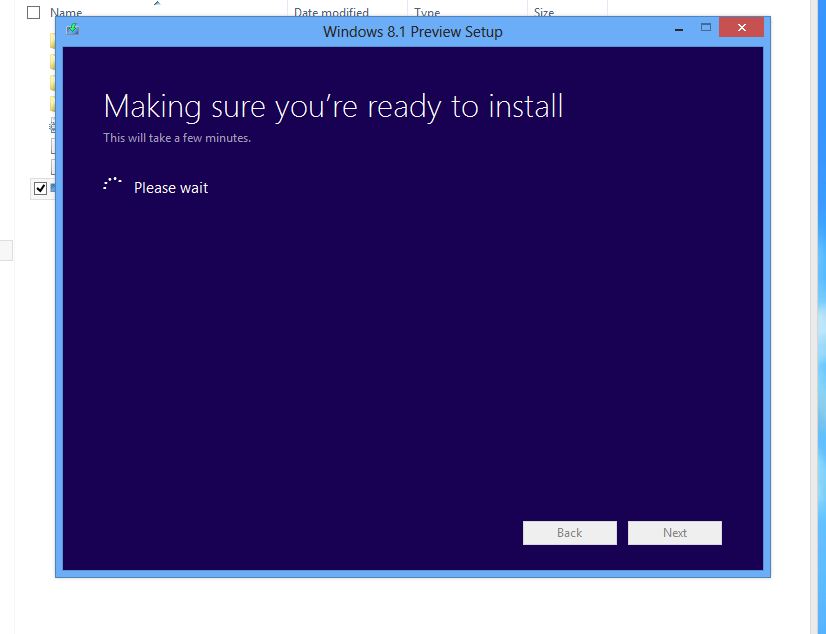
6. Performing some checks.
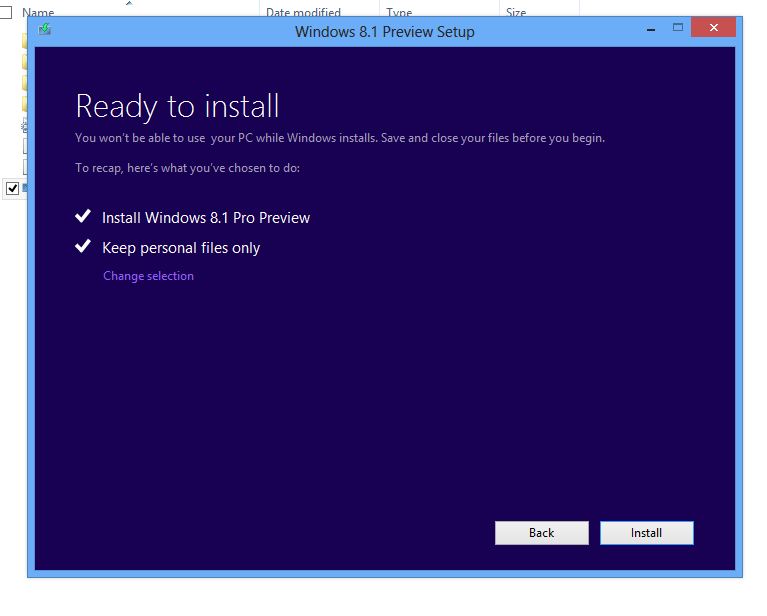
7. We’re ready to roll.
8. The installation begins.
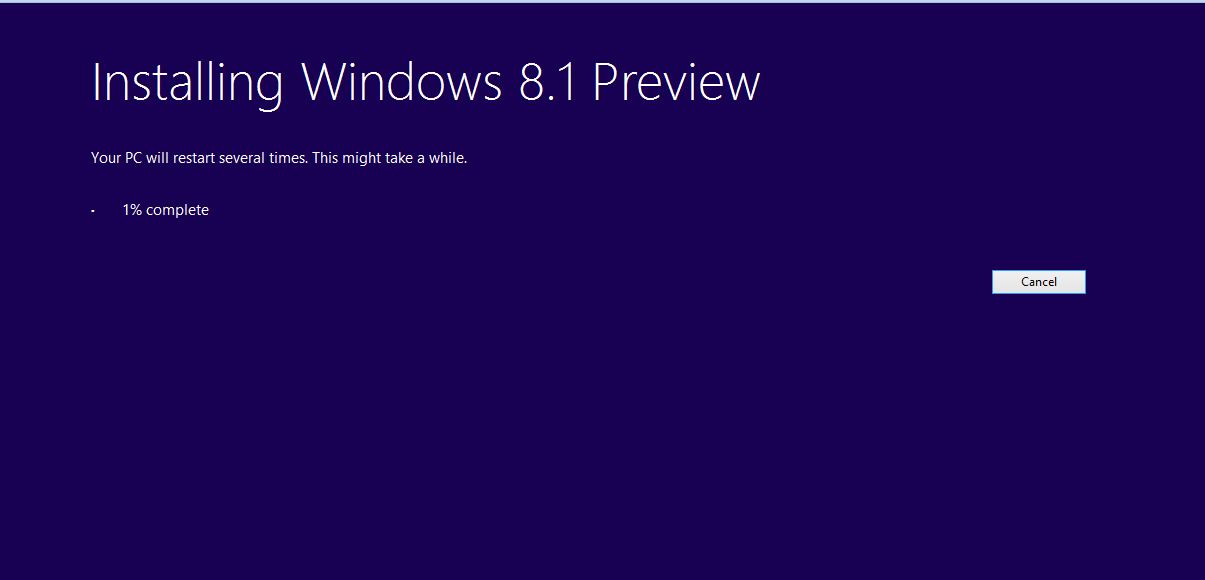
9. The machine reboots.

10. Sticking with the fish theme I see.

11. Choose your Settings: Express or Custom.
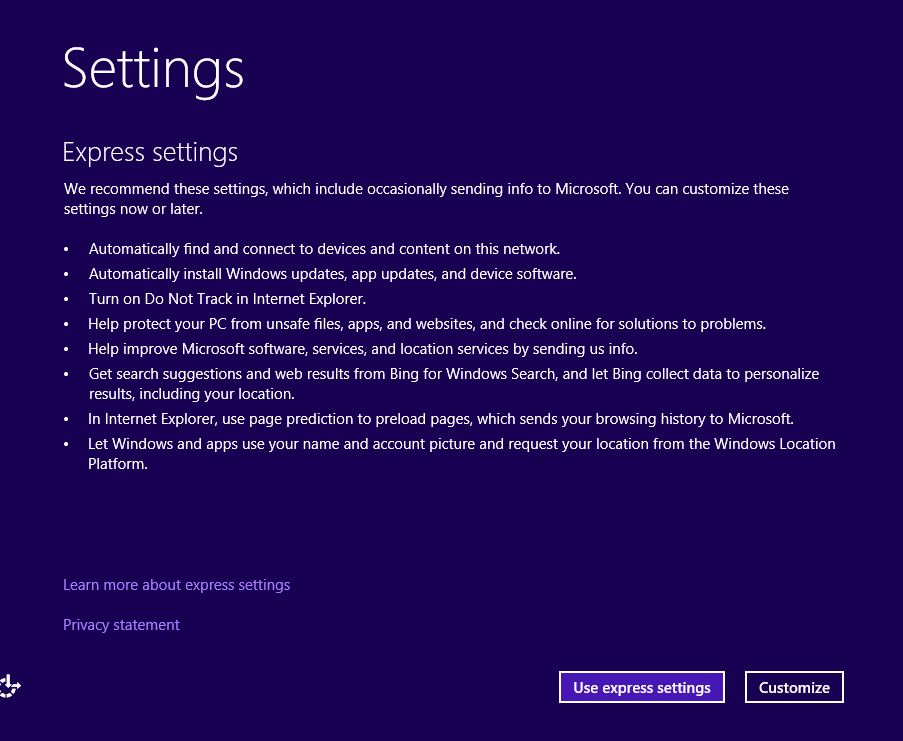
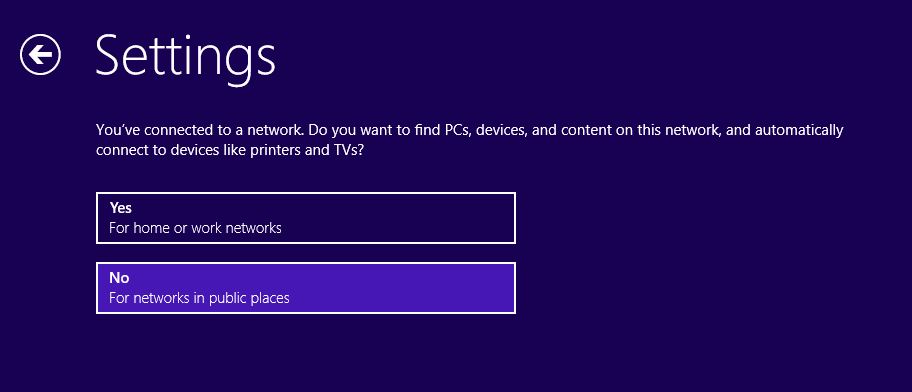
12. Network discovery choices.
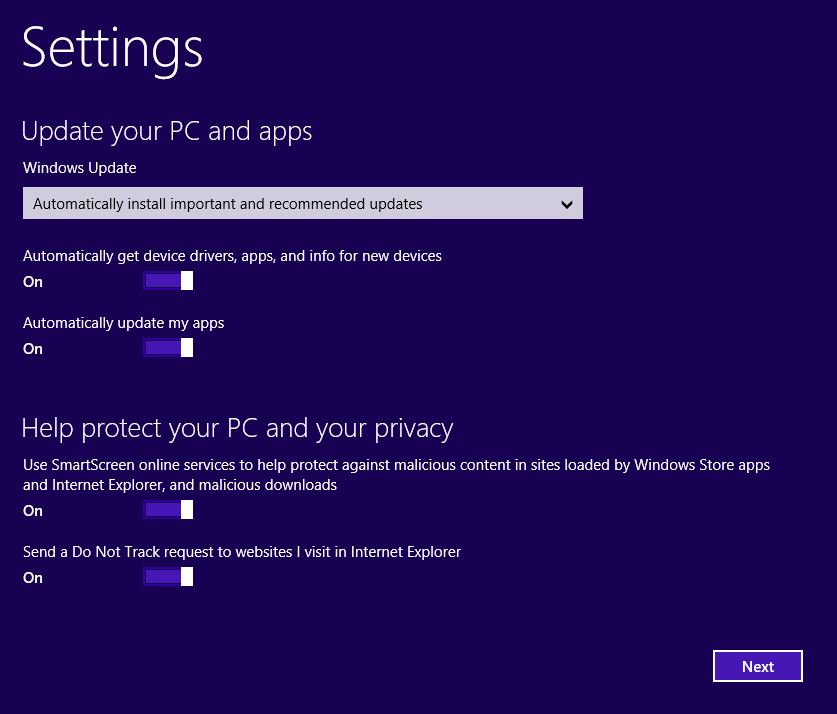
13. Choose your Windows update and Privacy settings.
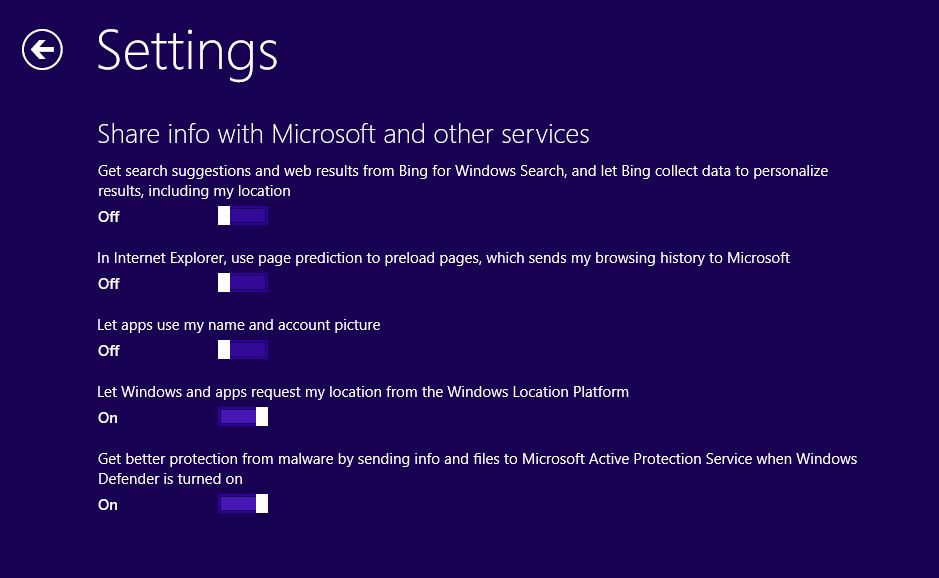
14. Choose whether to share or not share info with Microsoft.
15. Setup continues.
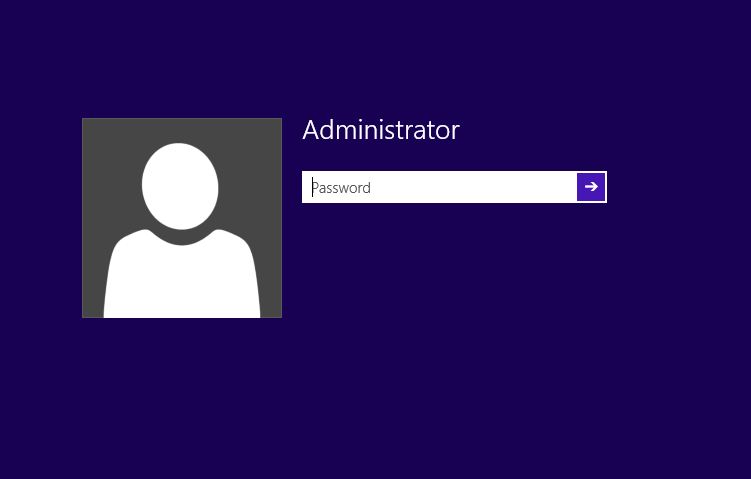
16. And here we are at the login screen.

17. Enter your password.
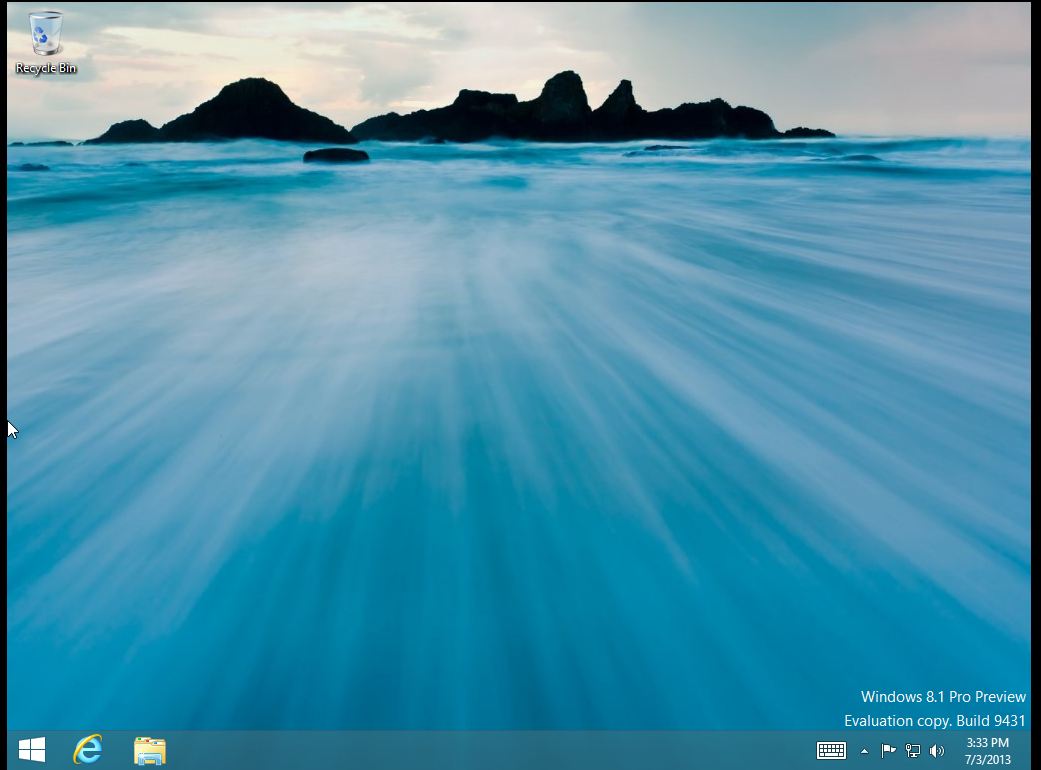
18. And we’re at the desktop.
A very simple upgrade indeed. The only thing I did not see during setup was the choice to user either a Microsoft account or a Local account. Since this is a preview, I am guessing that this option will be included in the RTM release of the Enterprise version. But that’s it. Go to http://technet.microsoft.com to get your copy of the Windows 8.1 preview and see what you think.
 d:constructed